Two minutes of setup
Install BrainTokens on the iPhone or iPad your child uses, then follow the three setup steps:
- Your child's name and age. The age picks a starting level for math and phonics. You can change it anytime.
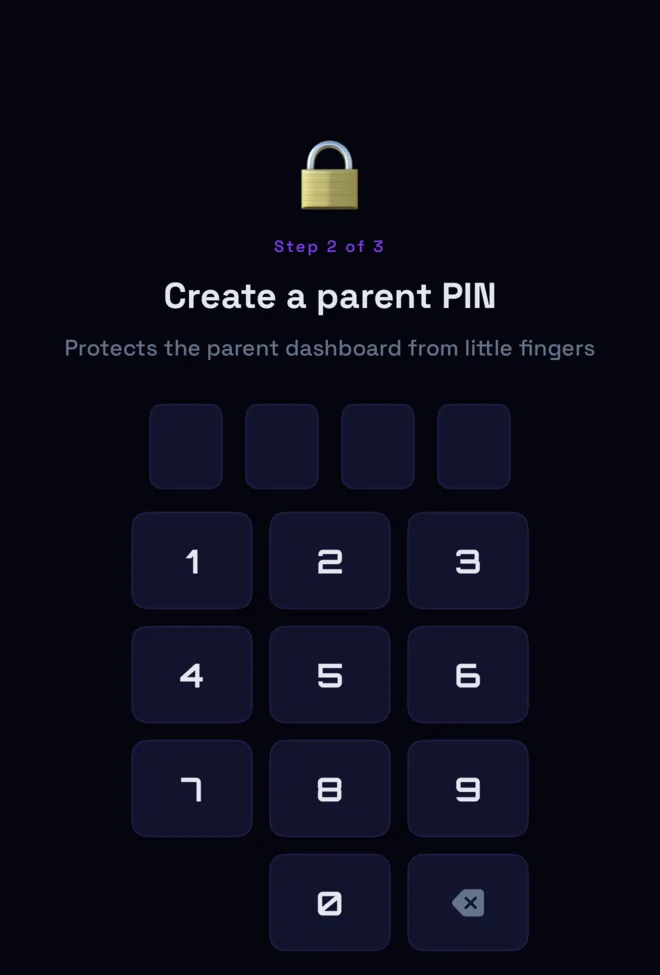
- Create a 4-digit parent PIN. It guards the Parent tab, so pick one your child hasn't seen.
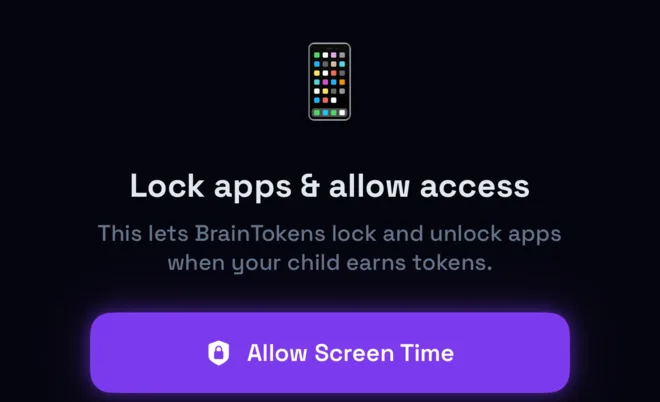
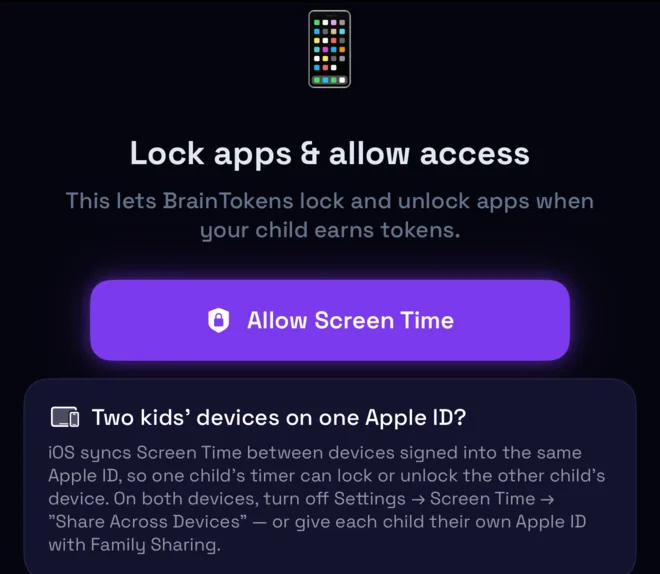
- Allow Screen Time. iOS asks for permission so BrainTokens can lock and unlock apps. Without it, tokens can't unlock anything.
Everything lives behind the Parent tab
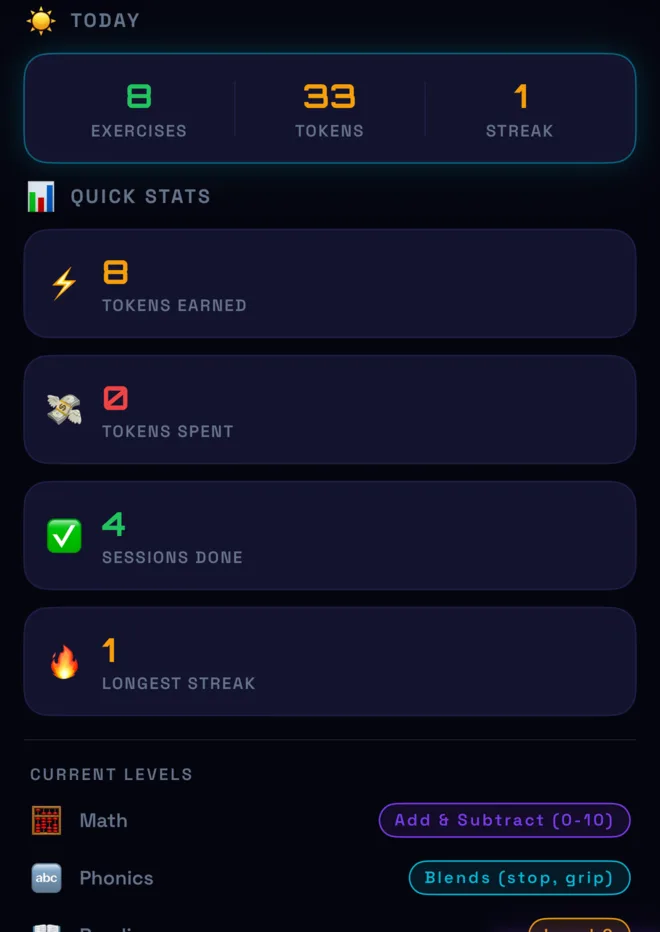
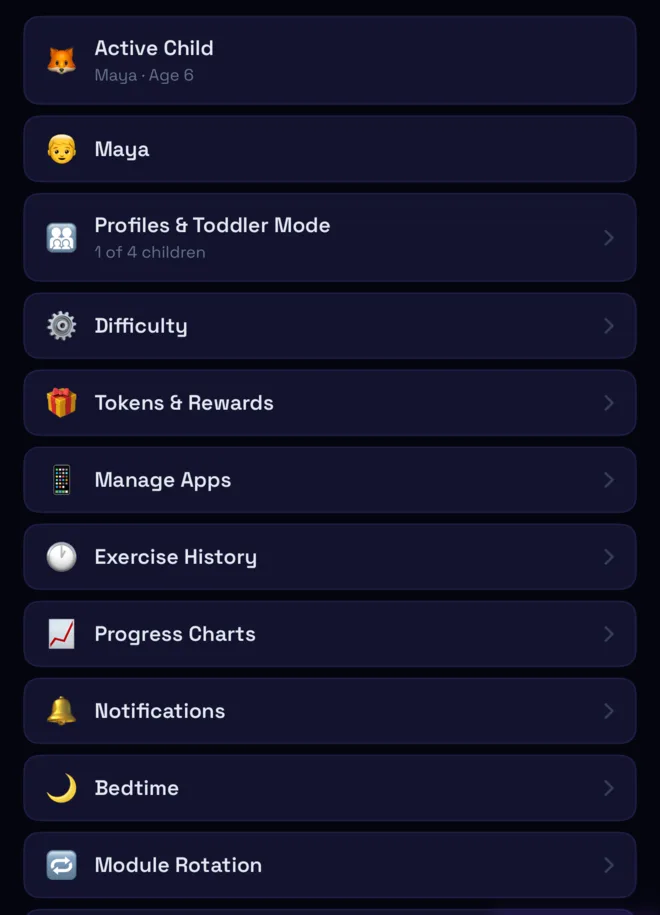
Tap Parent in the bottom bar and enter your PIN. The top of the dashboard shows today at a glance: exercises done, tokens earned and spent, the current streak and your child's current level in each subject.
Scroll down for Settings. Every section of this guide matches a row there.
At the very bottom you'll find Change PIN, your subscription and Reset All Data, which erases every child's tokens, progress and settings and can't be undone.
You pick what's earned
Open Manage Apps to choose which apps and categories stay locked. Anything you don't select is left alone, so you can keep the camera, messages or school apps always available.
Locked apps stay locked until your child spends earned tokens on them. When the earned time runs out, iOS locks them again.
- ✓Unlock Apps (Temporarily) opens everything without spending tokens, for road trips or when you're using the device. Apps stay open until you tap Lock Now, so remember to lock them before handing the device back.
- ✓Remove All Locks in Manage Apps clears your selection completely.
Decide what learning is worth
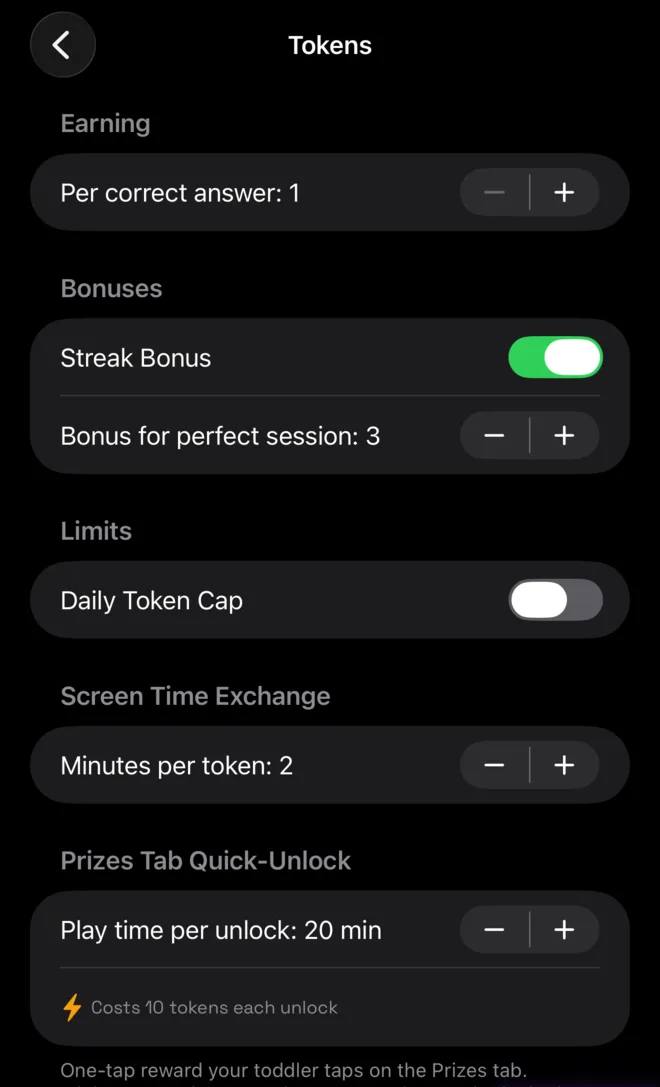
Tokens & Rewards is where you set the exchange rate between learning and screen time.
- Per correct answer
- Tokens earned for each right answer. Default: 1.
- Streak bonus
- Extra tokens for a perfect session. Default: on, 3 tokens.
- Daily token cap
- The most tokens your child can earn in one day. Off by default.
- Minutes per token
- How much screen time one token buys. Default: 2 minutes.
- Prizes quick-unlock
- The one-tap reward toddlers use (15–60 min, default 20). See Toddler Mode.
Up to four kids on one device
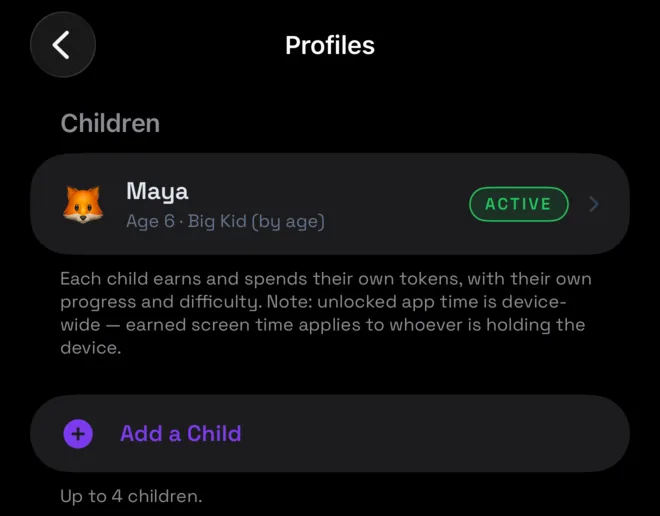
Add children under Profiles & Toddler Mode. Each child has their own tokens, progress and difficulty, and a “Who's playing?” picker appears when the app opens.
Unlocked time applies to the whole device. Screen time a child earns is available to whoever is holding the device while it runs.
Toddler Mode (ages 2–4)
Younger children get a simpler, spoken, tap-only experience. It turns on automatically for ages 2–4. You can also set it to Always On or Always Off for any child.
Toddlers collect stars and trade them on the Prizes tab for a one-tap unlock. You choose its length in Tokens & Rewards. The minimum is 15 minutes because that's the shortest window iOS can reliably lock back on time.
Adaptive, with manual override
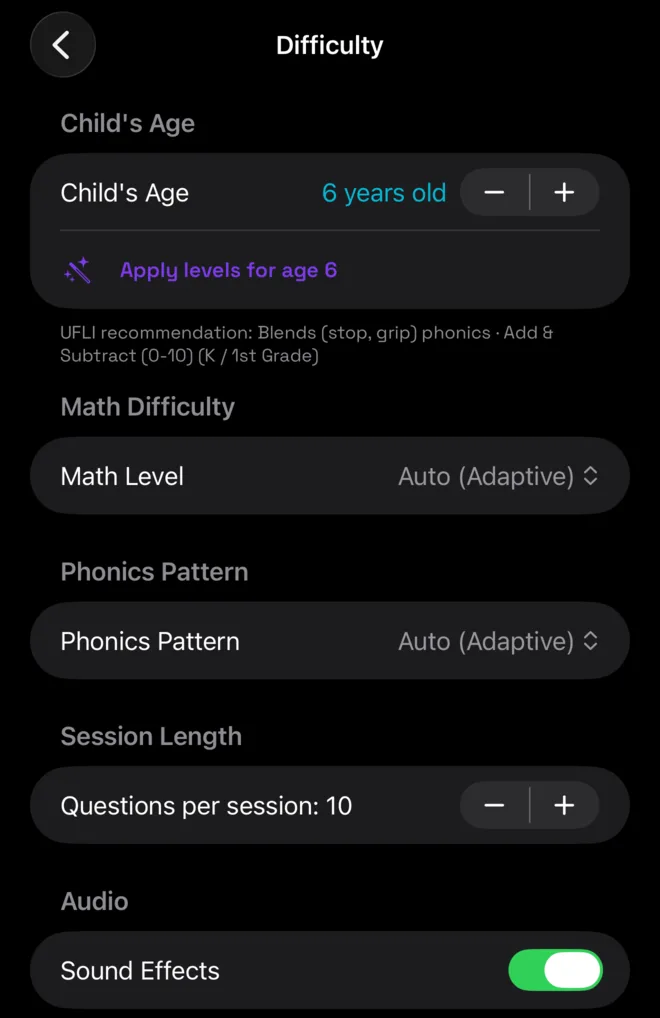
By default, math and phonics are set to Auto (Adaptive). Your child starts at the level recommended for their age (based on the UFLI phonics sequence) and moves up as they master it.
- ✓Child's age: changing it resets levels to that age's recommendation.
- ✓Math level / phonics pattern: pick a level to lock it in place. Auto-advance pauses until you switch back to Auto.
- ✓Questions per session: shorter or longer sessions. Default: 10.
- ✓Sound effects: on or off.
A hard stop at night
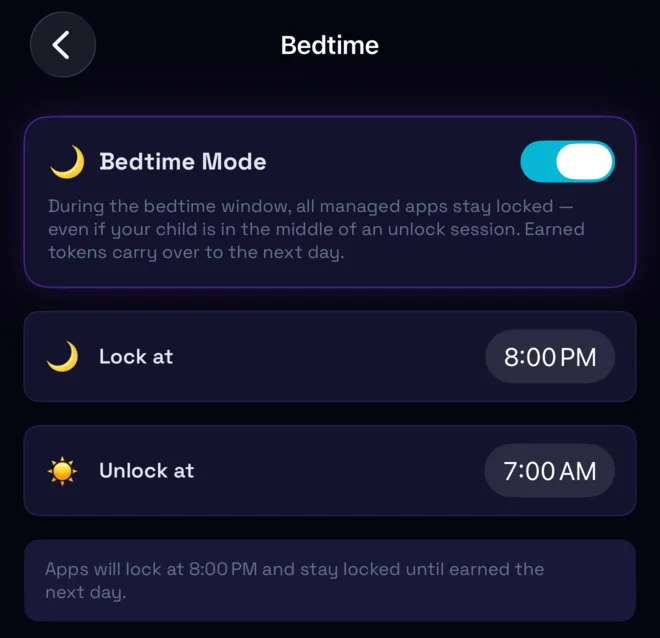
Turn on Bedtime Mode and set a lock time and an unlock time (for example 8:00 PM to 7:00 AM). During that window every managed app stays locked, even in the middle of an unlock session.
Nothing is lost. Unspent tokens carry over to the next day.
No farming the easy game
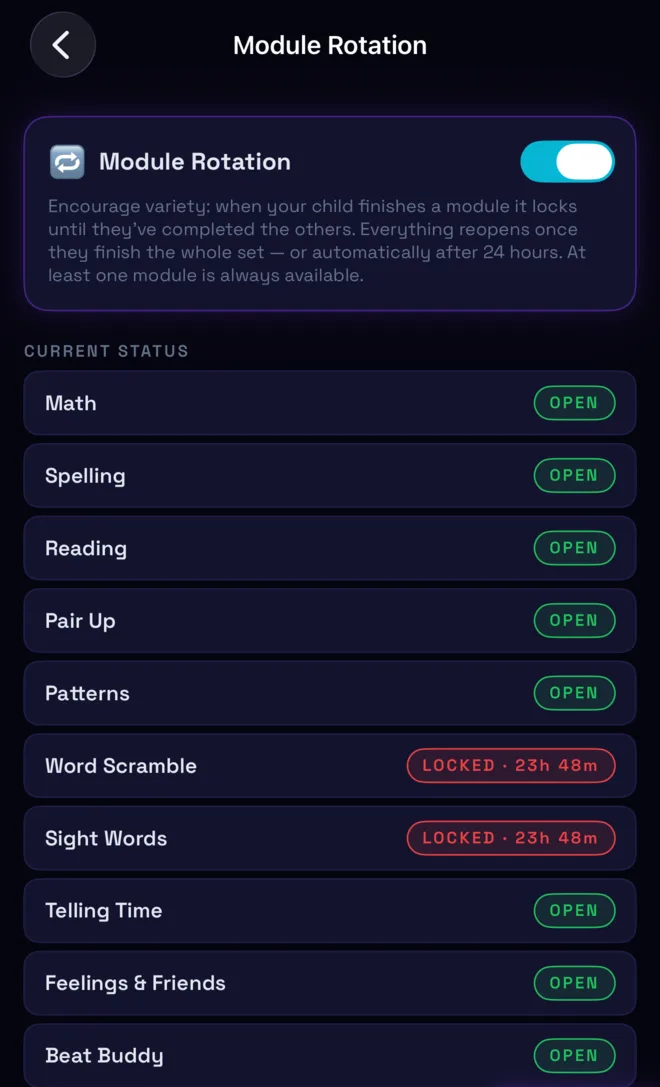
With Module Rotation on (the default), a finished training module locks until your child has done the others too. That way they can't earn all their time from the one game they find easiest.
Everything reopens once the whole set is done, or automatically after 24 hours. At least one module is always available. The screen shows which modules are open and how long each lock has left.
Gentle nudges, for them and for you
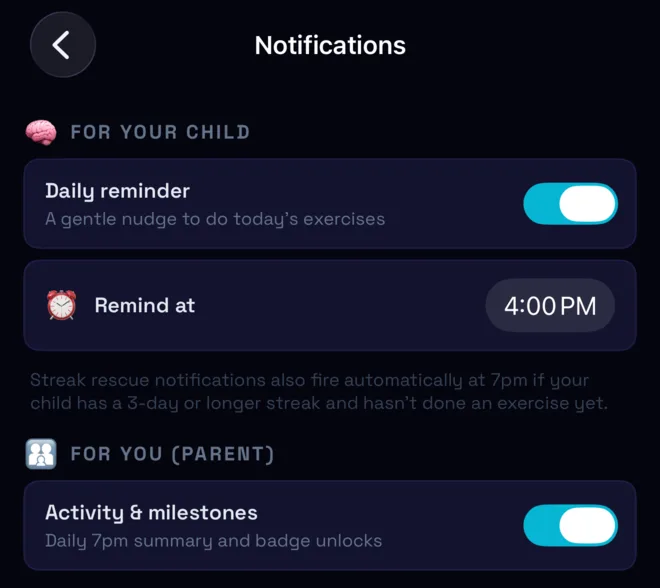
- ✓Daily practice reminder: tells you when it's a good time for a session, at a time you choose (default 4:00 PM).
- ✓Streak reminder: if your child has a streak of 3+ days and hasn't practised yet, you get a heads-up at 7 PM.
- ✓Activity & milestones: a 7 PM summary of the day, plus a note when your child unlocks a badge, moves up a level or trades tokens for a reward.
- ✓Weekly report: every Sunday at 6 PM, what your child did and learned that week. Open Weekly Report in the Parent area for the full picture.
- ✓Every notification is written to you. BrainTokens never messages your child asking them to come back.
Who reads to your child
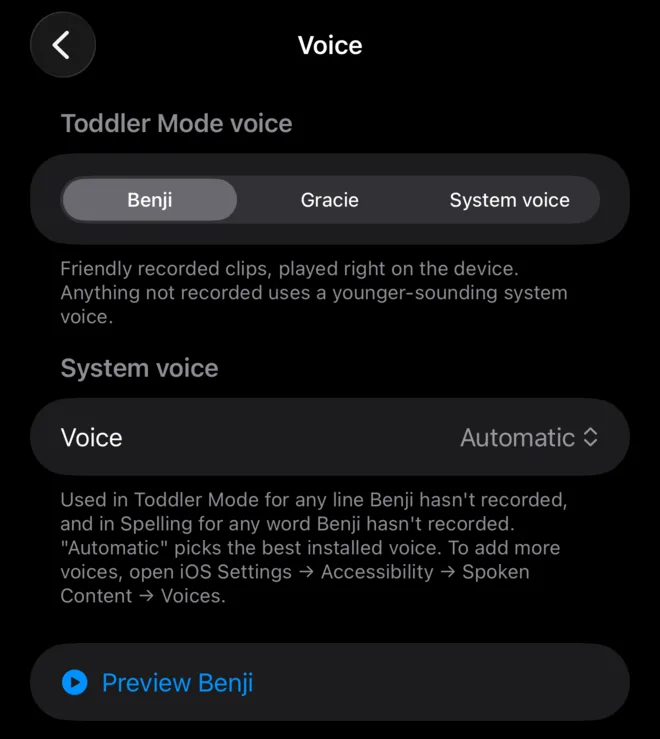
Toddler Mode and spelling words are read aloud. Choose Benji or Gracie, two friendly recorded kid voices, or the standard iOS system voice. Tap Preview to hear the one you've picked.
Anything that hasn't been recorded uses the system voice. For more natural system voices, go to iOS Settings → Accessibility → Spoken Content → Voices and download one.
Keep BrainTokens pinned open
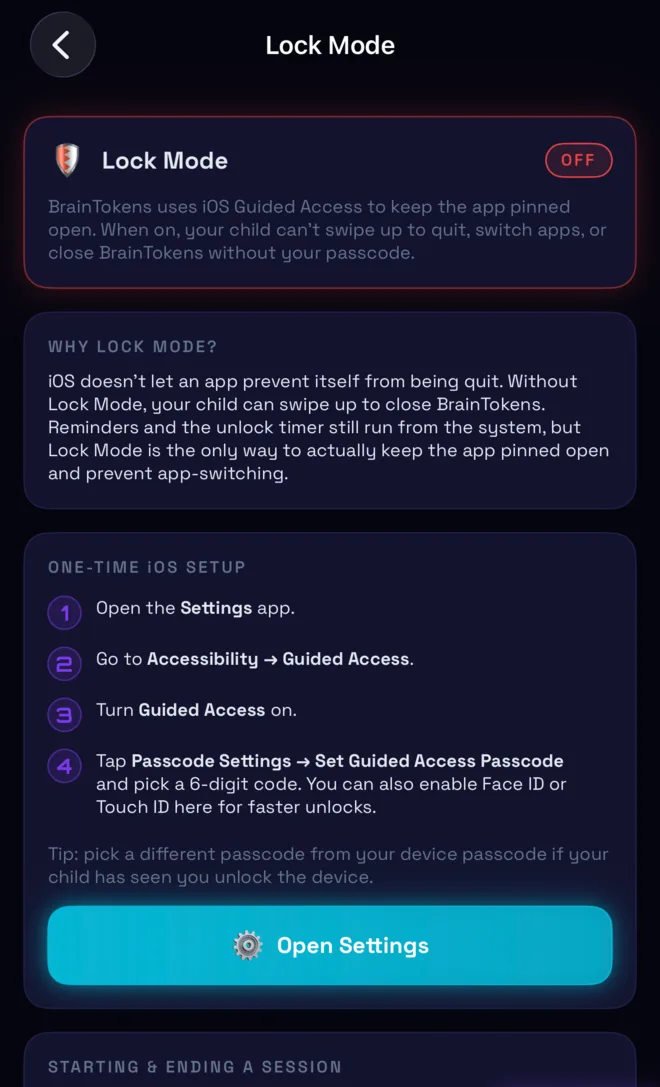
iOS doesn't let any app stop itself from being closed. Locked apps stay locked either way, but for practice time with no wandering off you can use Apple's Guided Access. BrainTokens calls this Lock Mode.
One-time setup
- Open Settings → Accessibility → Guided Access and turn it on.
- Tap Passcode Settings → Set Guided Access Passcode. Use a code your child doesn't know, not your device passcode.
Each session
- With BrainTokens open, triple-click the side button (or the home button) and tap Start.
- To end it, triple-click again and enter your passcode or use Face ID.
See what they're actually learning
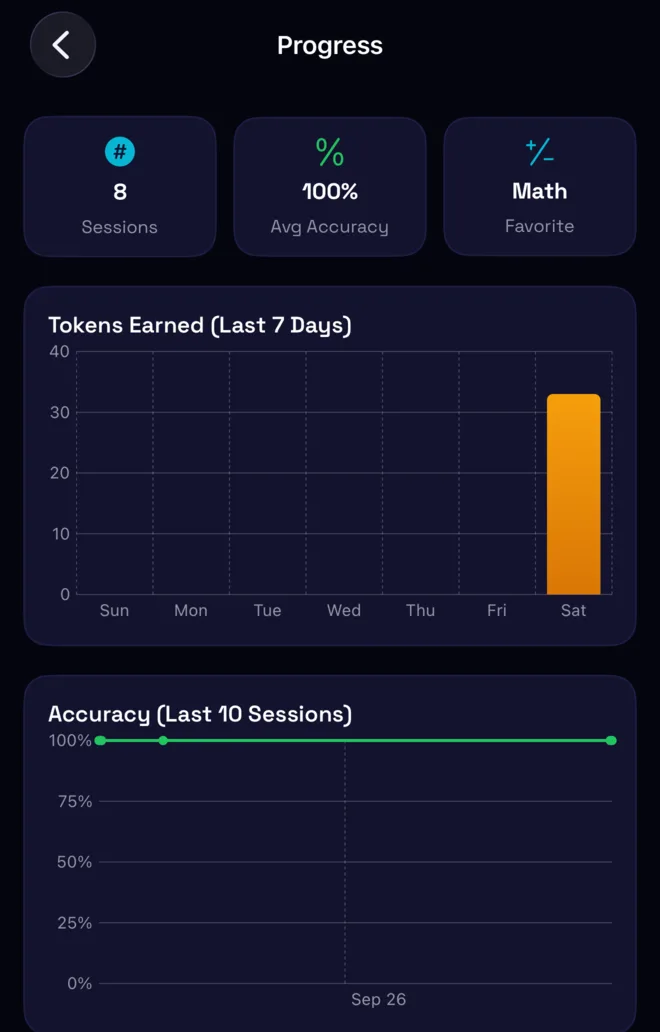
Progress Charts shows tokens earned over the last 7 days and accuracy across the last 10 sessions, plus total sessions, average accuracy and your child's favourite subject.
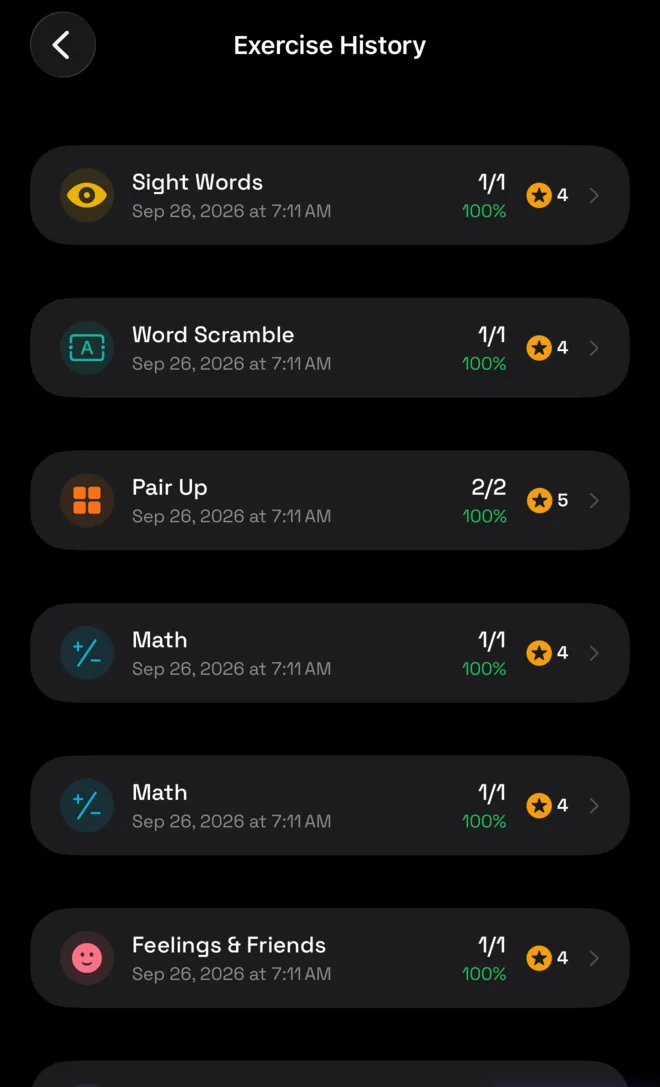
Exercise History lists every completed session with its score, accuracy and tokens earned. Tap a session for the details.
All of it stays on the device. See our privacy policy.
When something's not right
There's a red “can't lock apps” banner
One child's timer is locking or unlocking another child's device
Apps are still open after I unlocked them for myself
My child keeps closing the app
I forgot my parent PIN
A module is locked and my child wants to play it
Email [email protected]. You'll hear back from a real parent on our team.